
Podcast listening links
How to share a podcast timestamp link
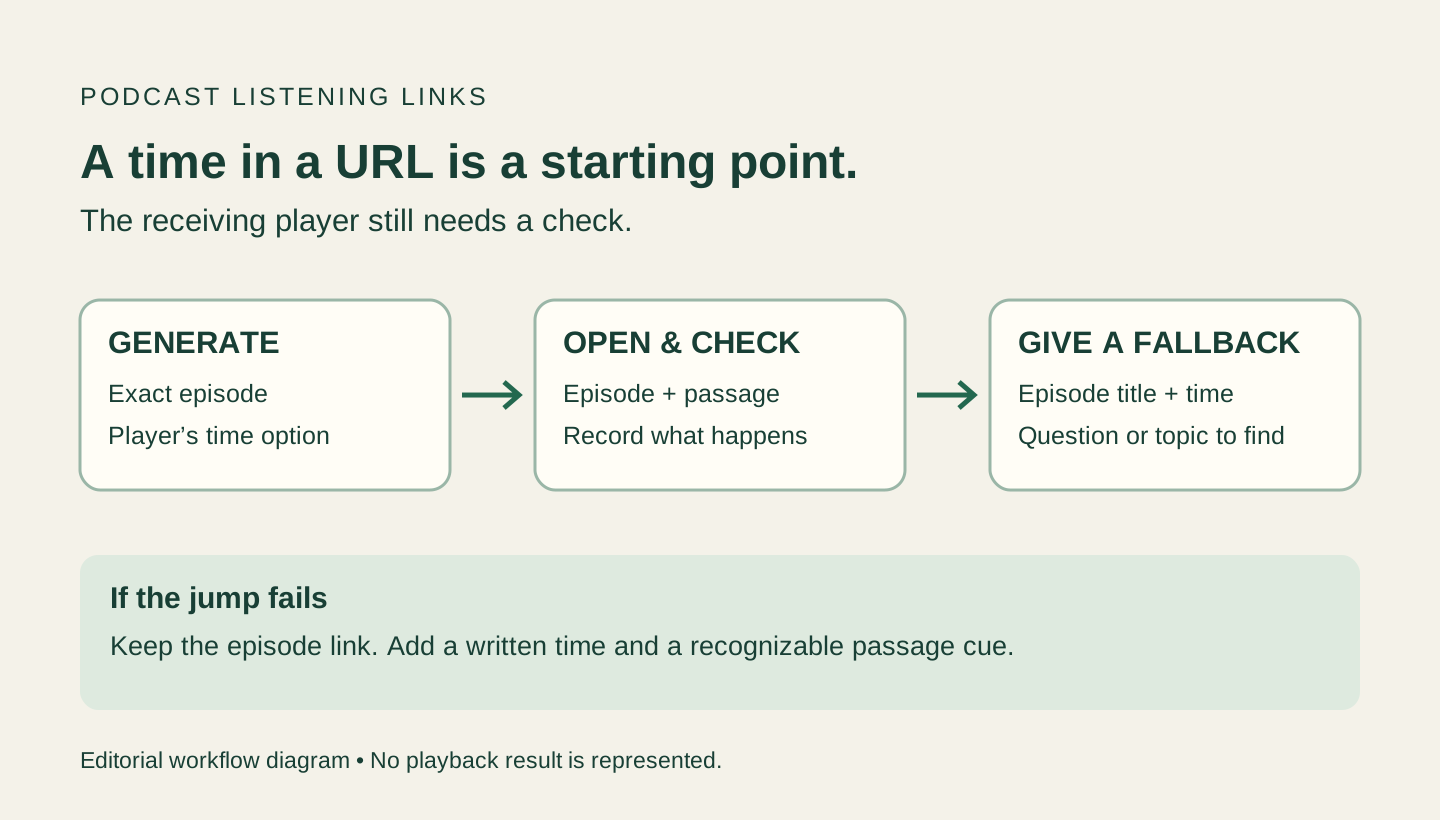
To share a podcast timestamp link, find the passage in the exact episode you want to send, use that player’s time-based sharing control, and copy the resulting link. Reopen the copy before sending it. Include the episode title, a written time and a short passage description so the listener has another way to find the moment.
A link that opens the right episode is not necessarily a link that reaches the right passage. The platform instructions below come from official documentation. The receiving-player check is a proposed workflow; this guide does not report a completed playback test.
Apple Podcasts on iPhone: choose the current time
In the episode’s Now Playing screen, open More, then Share. Select From Start, switch to From [time], and confirm with Done before choosing a destination. Apple describes the selected point as the playback position when Share was tapped. Source: Apple iPhone sharing instructions.
Choose the passage before opening the sharing controls. Then check the displayed time instead of assuming that a link copied from the episode information page includes it. These instructions concern the iPhone flow; they do not establish what every receiving browser will do.
Spotify: choose timestamp from the sharing options
Spotify’s May 27, 2026 announcement describes a sharing menu with episode, chapter, timestamp and clip choices. While listening, open Share and choose timestamp if your interface offers it, then check the displayed position before copying the link. The announcement is documentation of the feature, not a test of your app or recipient. Source: Spotify’s updated podcast sharing menu.
Use the menu you actually see rather than following an old screenshot of a toggle. If a time option is absent, send the episode link with a written locator; do not label that ordinary link as a verified jump link.
An embed is a separate output. Spotify’s creator help describes a start-time setting when generating an embedded player on desktop or the web. That setting does not establish that an ordinary episode link copied elsewhere includes the same time. Source: Spotify episode links and embeds.
YouTube on a computer: set Start at before copying
For a podcast hosted as a YouTube video, open the watch page and select Share. Enable Start at, enter the intended time, then copy the link. YouTube’s example enters 2:30 for a point 2 minutes and 30 seconds into a video. Source: YouTube computer sharing instructions.
Keep the link generated for that video. Before reusing a time from a transcript, another upload or a listening app, find the passage in this version. Matching episode titles do not spare the listener a search when the passage is elsewhere.
When you only have a published chapter time
The producer’s page for Lex Fridman’s episode with Guido van Rossum lists “Speed of Python 3.11” at 1:00:15. The entry locates a topic in the published outline. It does not establish a particular sentence’s position or a recipient player’s starting position. Source: Producer’s episode outline.
A note you can send: Lex Fridman Podcast, episode 341 with Guido van Rossum. Episode page: https://lexfridman.com/?p=5287. The producer’s outline places the Python speed section at 1:00:15. Use that as a chapter locator and confirm the topic in the version you play. Playback and automatic jumping have not been checked.
The episode-page link above is an ordinary source link, not a generated timestamp link. A listener can follow it to the published outline and choose a listening destination. If the listener needs an exact quote, locate that sentence first; do not promote this chapter start into a quote timestamp.
If the link opens at the beginning, diagnose what failed
A listener should not have to guess whether the link or the time is wrong. Compare the destination’s show and episode first. If the identity matches, check the copied time in the intended receiving app or browser. A successful page load alone does not establish where playback begins.
| Symptom | Check | Repair |
|---|---|---|
| The show opens, but no episode is selected | Was the link copied from the show page? | Generate a link from the episode itself. Keep the episode title beside it. |
| The right episode opens at the beginning | Was a time selected in Share, and is the copied time still present? | Generate a fresh link with the time option. If the receiving player still ignores it, give the written locator. |
| The time appears correct, but the passage is wrong | Compare the actual question or topic at that point with the passage you intended. | Relocate the passage in this version. Do not apply an unexplained offset to every link. |
| The destination cannot be played | Record the access prompt or error rather than treating the page title as a successful test. | Use another accessible source only after finding the passage there; otherwise state that the playback check is incomplete. |
Copyable listener note
Give the listener a time and a passage cue
Replace the brackets with details from your episode. If your time comes only from a producer’s outline, name that source and leave playback unchecked. The filled example above shows how to do this without implying a successful jump.
[Show] — [Episode title]
[Exact player link, or ordinary episode-page URL labeled as such]
Locator source: [the recording/version you checked] OR [producer’s published outline; playback not checked].
Start around [HH:MM:SS]: [question or topic to find]. Treat an outline-only time as a chapter locator, not an exact sentence position.
If the jump does not work, open this episode and seek to that time; use the passage description to confirm the location.
Playback check: [app/browser, device, check date, observed start and passage] OR [not performed].
Test before sending
Check the copied link as a listener
Copy the generated link
Use the player’s sharing controls after locating the passage. Preserve the original copy while checking it. You do not need to invent a universal URL parameter for Apple Podcasts, Spotify and YouTube.
Open the link away from the already-positioned player
Open the final link in a fresh tab or a separate receiving-player session, rather than relying on the player you already positioned. Confirm the episode identity, press play if needed, and inspect the starting position and surrounding passage. Record the app or browser used.
Check the passage, not only the clock
Listen for the question, speaker or topic that identifies the intended passage. Start early enough to include essential setup. If all you checked was transcript text, keep the media position unverified.
Keep a fallback with the final copy
Write the show and episode title, the time in the version you checked, and the question or topic the listener should find. Reopen the final URL after any shortening or editing. Record the app or browser and observed passage; one successful check does not establish behavior on every device.
Hypothetical troubleshooting case
A copied link and a failed jump need different labels
Imagine a link prepared for a fictional episode, Workshop Notes: Choosing a launch date. The intended passage begins at 02:30. The values below are invented to demonstrate a decision; no episode, URL or receiving device was tested.
| Situation | What is known | What to do |
|---|---|---|
| Prepared | A time-based link has been copied. | Label the link generated; leave playback unchecked. Save the episode title, 02:30 and the passage cue: the host asks which dependency fixes the launch date. |
| Hypothetical check | The episode opens, but playback starts at 00:00. | The episode identity is correct; the automatic jump failed in this imagined session. Regenerate the link or send an ordinary episode link with the written time and passage cue. |
| Hypothetical mismatch | At 02:30, the expected question is absent. | Hold the time claim. Find the question in this version, then make and test a new link. Keep the old time out of the listener-facing note. |
The useful distinction
“A generated link records an intention. A playback check records what a receiving player actually did.”PodInk editorial recommendation
The fallback for the failed-jump case would read: “Workshop Notes — Choosing a launch date. Start around 02:30; look for the host’s question about which dependency fixes the launch date.” Attach the real episode link only after replacing this fictional exercise with your own source.
The fictional link exercise demonstrates how to describe an incomplete or failed check. It supplies no verified podcast link, recording evidence or cross-platform success rate.
Compare how the approved core changes in the LinkedIn workflow and the X workflow.
Before sharing
Keep a useful fallback beside the link
- The copied URL identifies the intended episode or video.
- The written time belongs to that specific version.
- The note distinguishes a producer’s published chapter time from a passage you located in the recording.
- The receiving-player result is recorded, or the check is marked not performed.
- The passage cue helps the listener recover when the automatic jump fails.
- Any quoted wording or factual claim has its own source review; a working link does not verify it.
Evidence limits
What these instructions establish
- Platform directions were checked against official public documentation on November 5, 2026. Interface availability and receiving-player behavior still need to be checked in the actual app or browser.
- No podcast audio, video, account-specific share menu or recipient device was tested for this guide. The real fallback uses a public episode page and its outline; the troubleshooting exercise remains fictional.
- A timestamp points to a starting location; it does not establish a clip end, spoken-word accuracy, reuse permission or publication approval.
Human review remains necessary. No repurposing workflow can turn weak evidence into a strong claim.
FAQ
Frequently asked questions
Can I use the same timestamp across podcast apps?
Do not assume that the same time reaches the same passage in another version. Locate the passage in the destination you will share, then generate and check a link there. Keep a short passage cue with the written time.
Is an episode URL with a time value already verified?
No. A time value shows an intended position. Verification requires opening the final link in the relevant receiving player and checking both the episode and passage. Record an unperformed playback check as pending.
Evidence
Sources and comparison pages
- Share podcasts on iPhoneApple Support
- Share videos and channels — ComputerYouTube Help
- Podcast Clips Make Your Favorite Moments Easier to Save and ShareSpotify Newsroom
- Sharing and embedding shows and episodesSpotify for Creators
- Guido van Rossum: Python and the Future of Programming — episode outlineLex Fridman Podcast